How to shutdown windows without updating – cdm – shutdown /s /t 0
Windows often prompts users to install pending updates during shutdown or restart. Fortunately, using the Command Prompt (cmd), you can bypass updates and shut down your system immediately. This article explains how to use the “shutdown /s /t 0” command effectively.
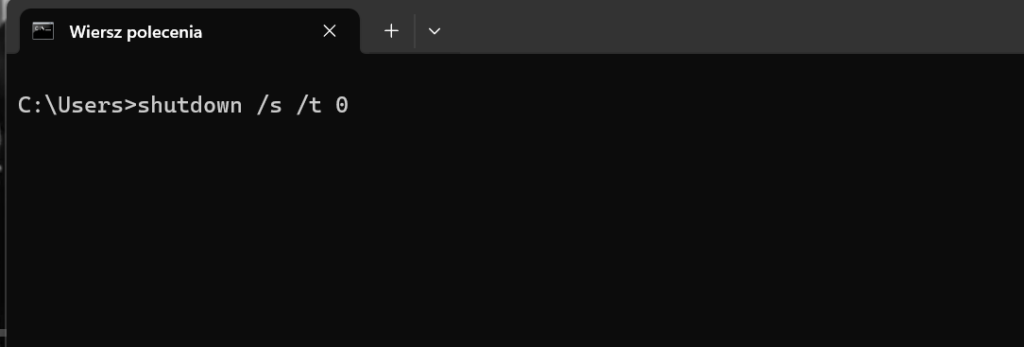
Understanding the command
The “shutdown /s /t 0” command is a simple Windows cmd instruction that forces the computer to shut down instantly without processing updates. Here’s what each parameter means:
| Command | Description |
|---|---|
shutdown /s | Shuts down the computer after a default 30-second delay (can be modified with /t). |
shutdown /s /t 0 | Shuts down the computer immediately (similar to /p). |
shutdown /f | Forces running applications to close without warning (can be combined with /p). |
| shutdown /p | Using /p does not imply /f, meaning it does not force applications to close. If there are unsaved changes in open programs, they may prevent shutdown unless combined with /f.Ensure all critical data is saved before using this command, as it does not provide warnings or an opportunity to cancel. |
shutdown /h | Puts the computer into hibernation instead of shutting down. |
- shutdown: the application that handles the turning off process
/s: Specifies that the system should shut down (as opposed to restarting)./t 0: Sets the time delay for shutdown to 0 seconds, executes immediately. You can set it to 3600 to shutdown the pc in 1 hour – 60 seconds * 60 minutes
Very usefull when You DO NOT WANT TO INSTALL UPDATE. Good rule of thumb to never install updates with 0 at the end 🙂
How to shutdown windows without updating – command prompt
- Open Command Prompt:
- Press
Windowskey, type cmd. Might need to click with right mouse button and select Run as administrator.
- Press
- Enter the Shutdown Command:
- Type “
shutdown /s /t 0” into the Command Prompt black window and pressEnter.
- Type “
- Immediate Shutdown:
- Your computer will shut down instantly without processing any pending updates.
How to shutdown windows without updating – windows
Easier to click it through if you do not feel doing it in command prompt.
- Pause Updates ( optional step ) :
- Navigate to Settings > Windows Update > Advanced Options and pause updates temporarily before shutting down.
- ALT + F4 Shortcut:
- Close all open windows, press
ALT + F4, select Shut Down from the dropdown menu, and click OK.
- Close all open windows, press
- Using
/pCommand:- Another CMD option is
shutdown /p, which also shuts down the computer immediately without warnings or delays.
- Another CMD option is
Key Considerations
- Ensure you run CMD as an administrator for the command to work.
- Avoid using
/funless necessary, as it forces applications to close abruptly, potentially causing data loss. - If updates are critical, schedule them for a later time instead of bypassing them entirely.
Summary
Many users prefer to shut down Windows without installing updates because of issues with forced updates on system stability and functionality. Windows updates, while designed to improve security and performance, often introduce unexpected bugs, compatibility issues, or changes that disrupt workflows. This has led to frustration more then once when we are forced to do them without adequate control or flexibility.